Multiply combines the colors you are painting with the layer underneath to produce a darker tone, making it a staple for painting shadows, creating depth, and adding texture.
Core Rules of Multiply
These are the three absolute rules of how this mode behaves on your canvas:
- White Has No Effect: Pure white (RGB 255, 255, 255) acts as the neutral color; multiplying by white keeps the base color intact.
- Black Wins: Multiplying any color by pure black (RGB 0, 0, 0) always yields pure black.
- Colors Multiply Together: Unlike Darken, which compares the two colors and keeps the darker result, Multiply combines their values mathematically. The result is darker than either color and often produces richer, more saturated-looking colors.
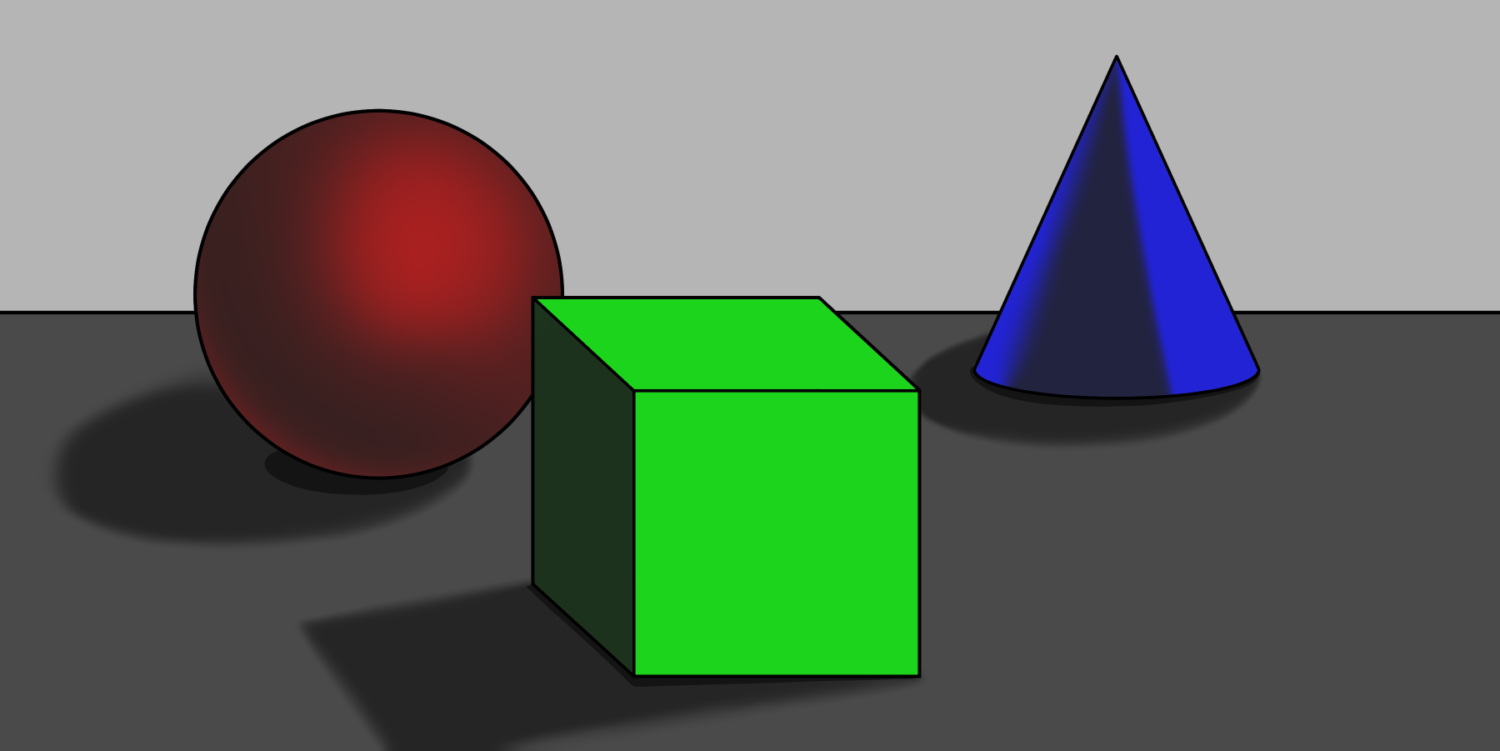 Darken
 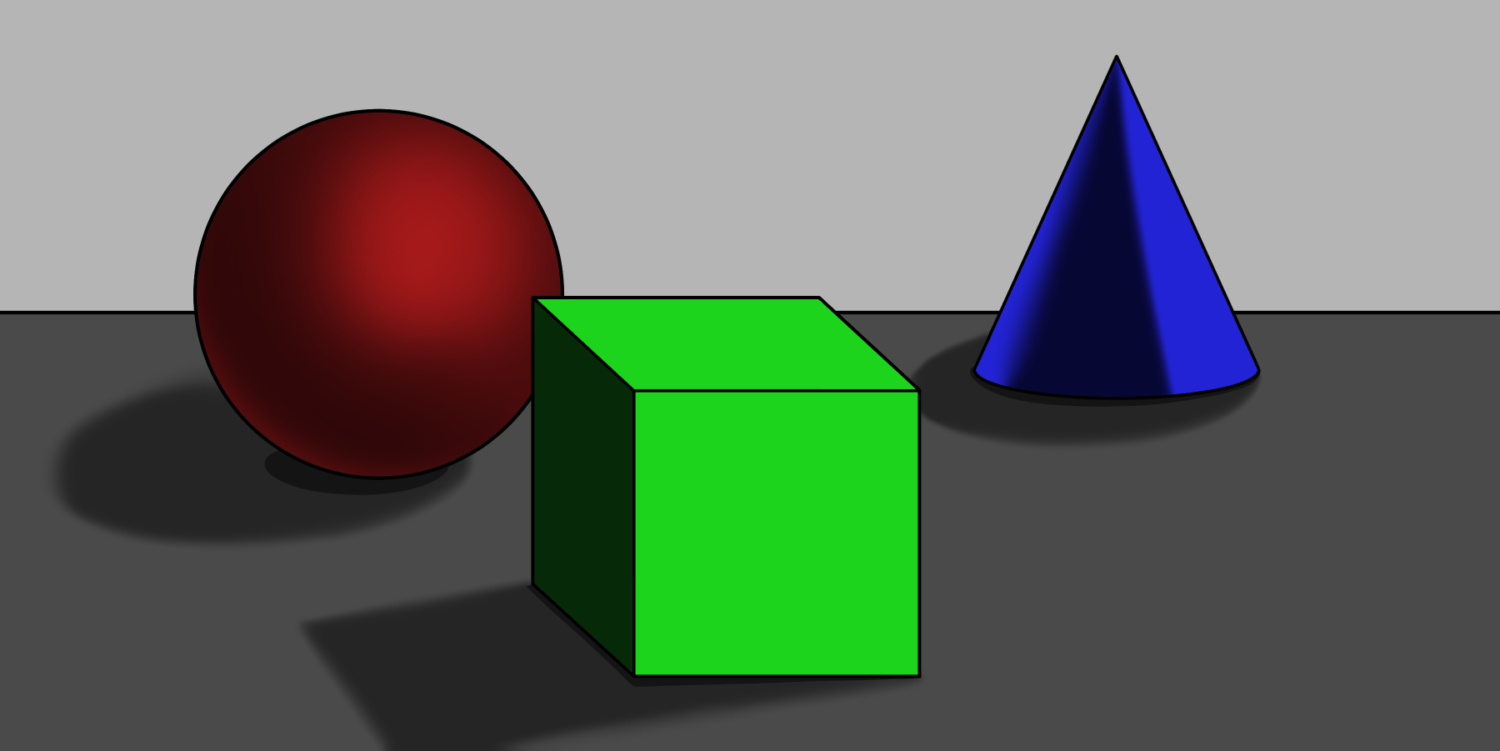 Multiply
 When to Use It
1. Fast Global Shading & Block Shadow Passes
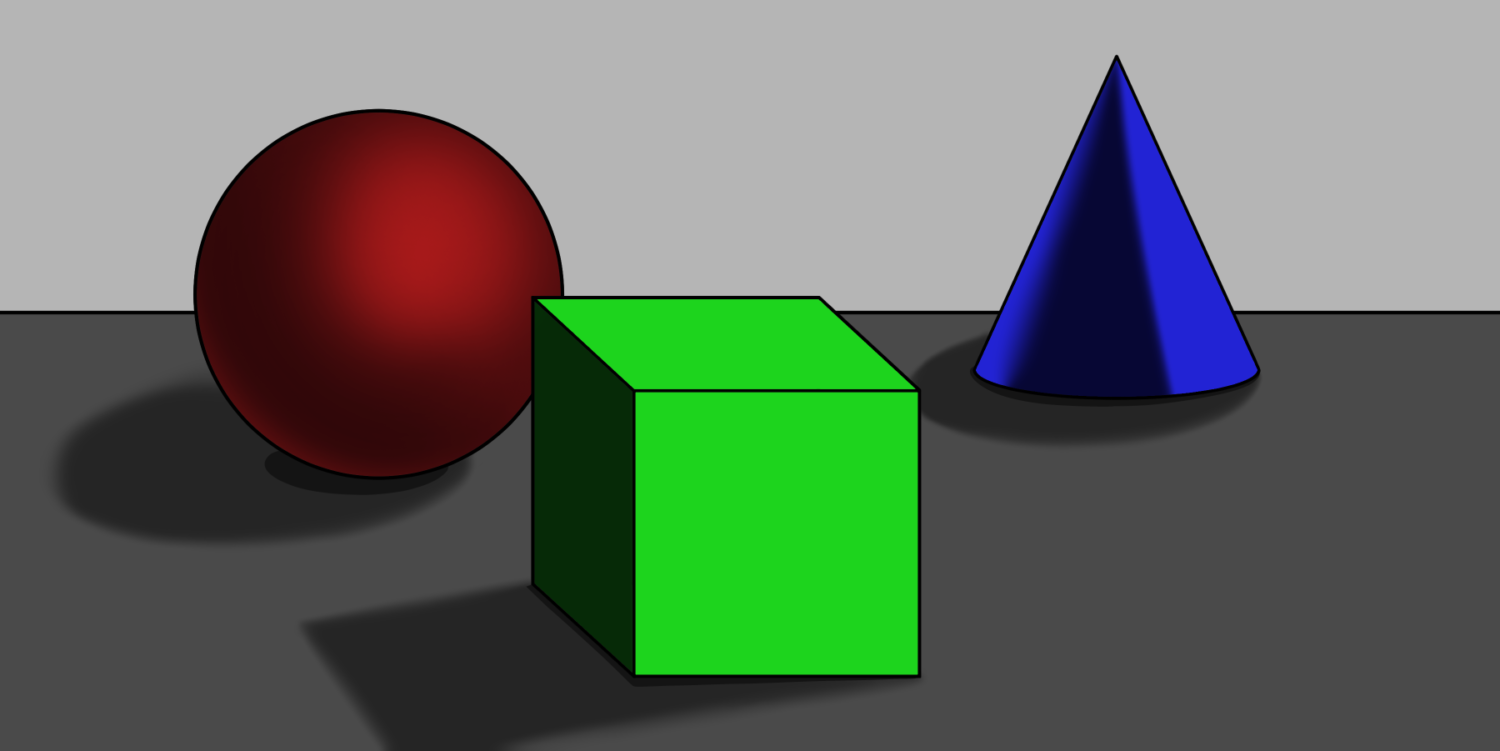
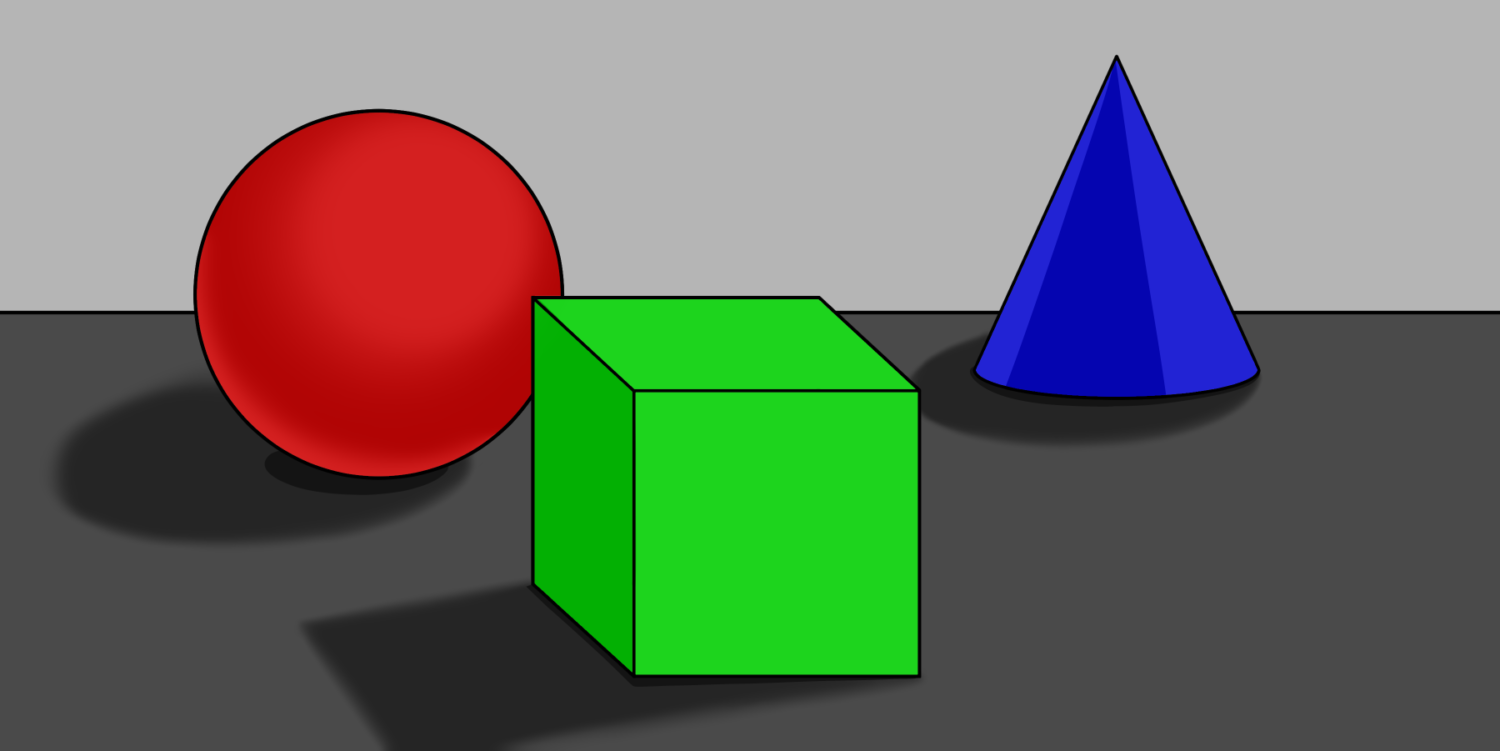
Instead of painting complex shadow transitions by hand, artists use Multiply to automate their values. You can either block in your shadow shapes with a flat color on a Multiply layer, or duplicate your flat colors layer, set it to Multiply, and erase the parts where the light hits.
- How to see it: Create a new layer set to Multiply, pick a cool mid-tone color (like a desaturated blue or purple), and paint shadows to define your shapes. Alternatively, duplicate your shape layer, set it to Multiply, and erase the sides facing the light source.
- The result: The Multiply layer automatically darkens the colors underneath while preserving their underlying color relationships. It builds a consistent shadow across all your shapes, dropping the values into a darker range without you having to pick individual shadow colors for every single object.
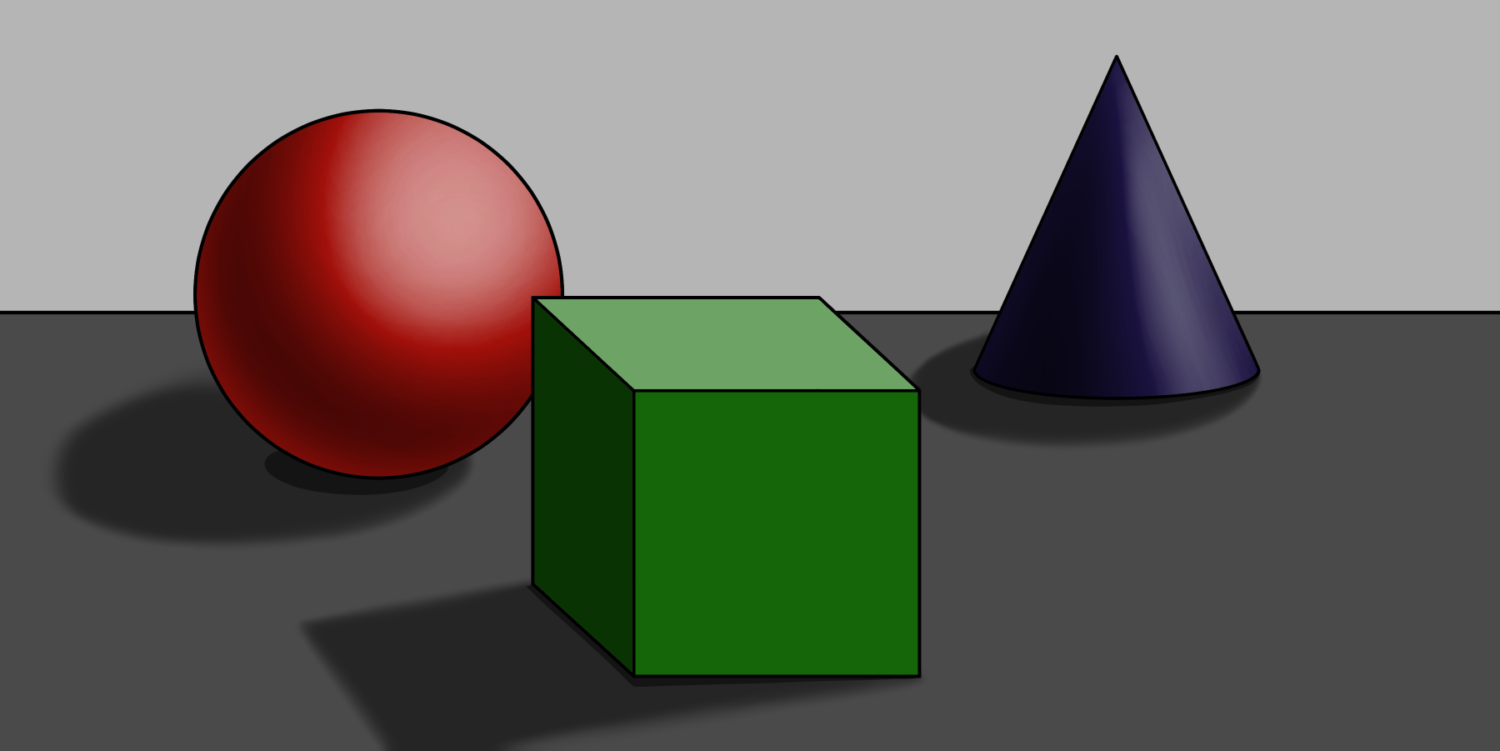
- Use the slider below to see how a flat Multiply shadow pass quickly gives your shapes more weight and dimension.
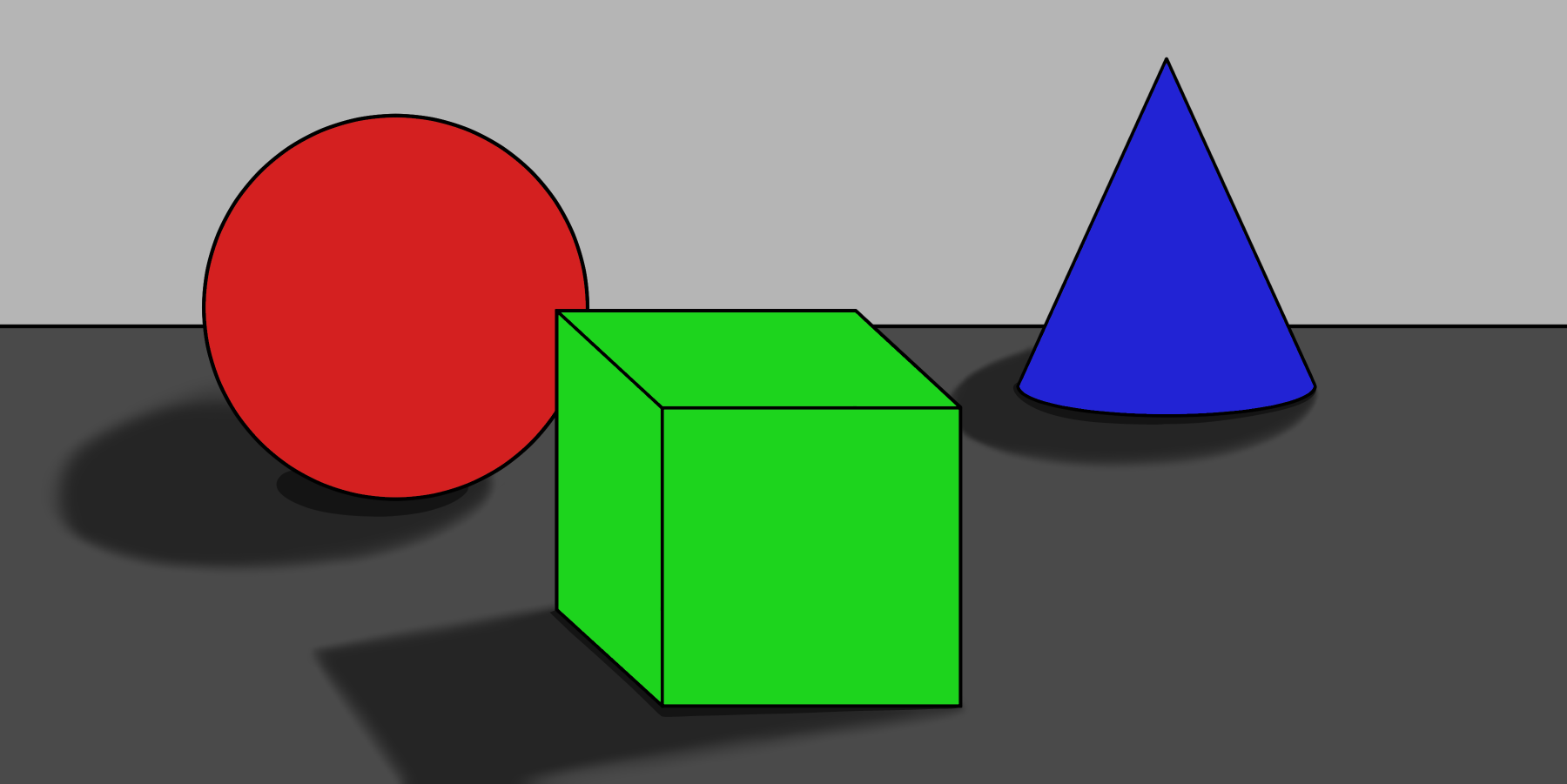 Flats
Flats 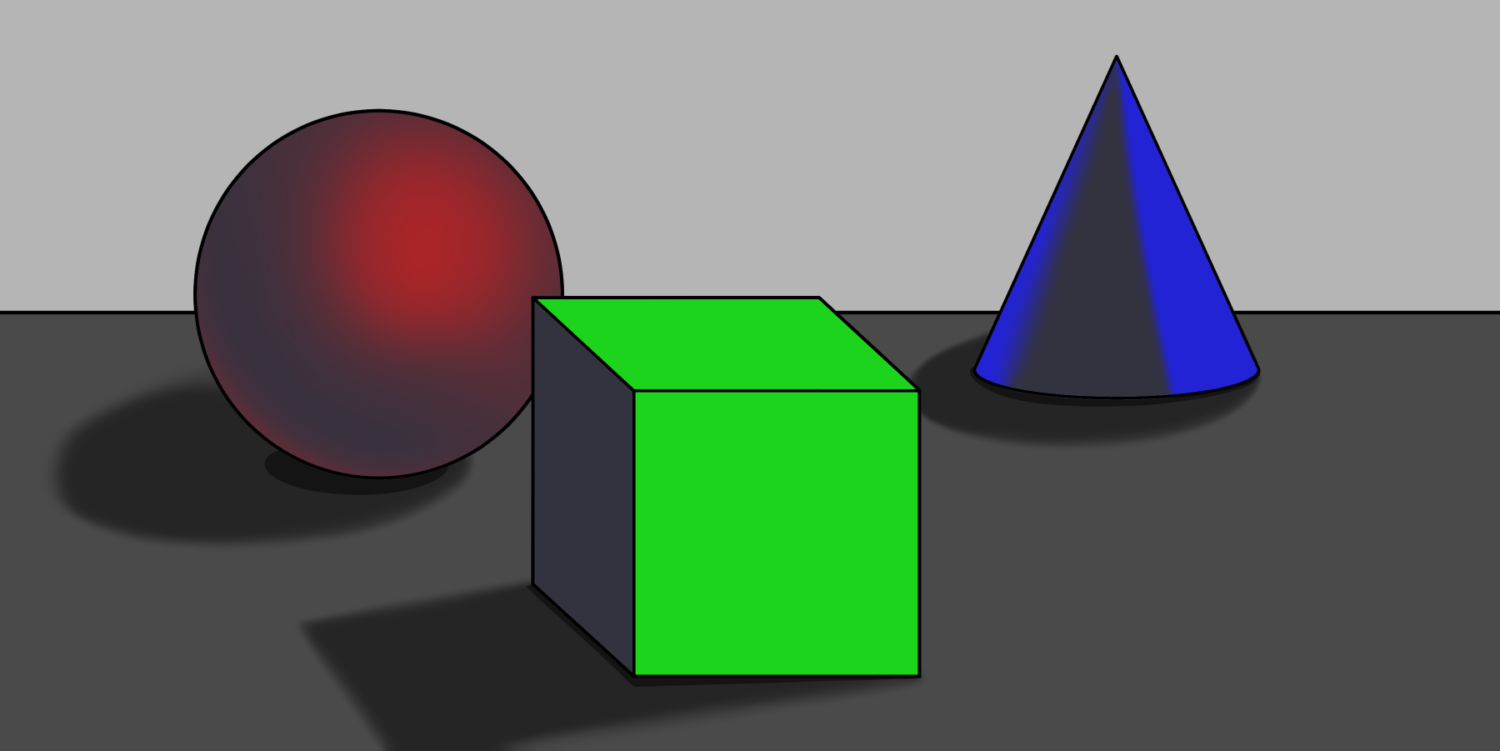 Plain Shadow
  Multiply
Flats
Multiply
Flats 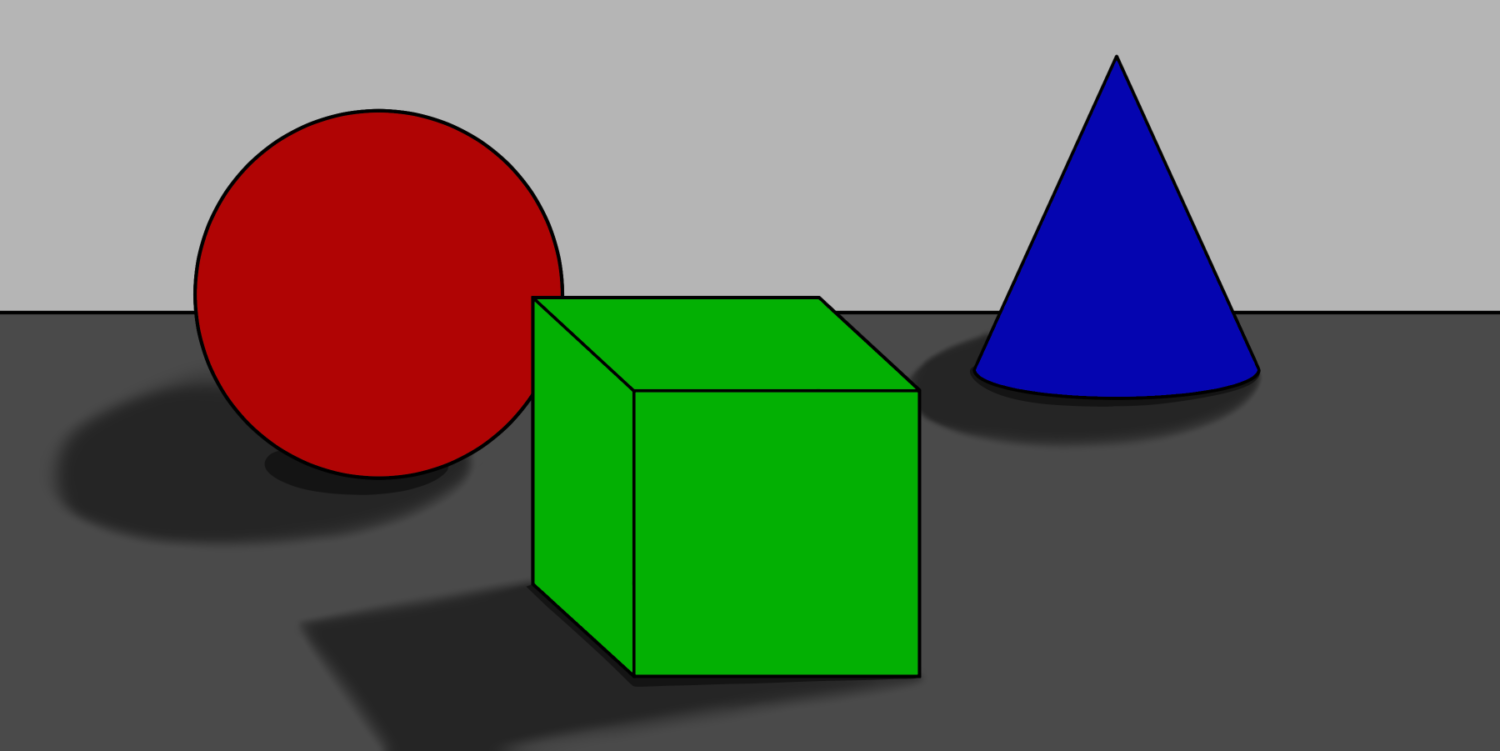 Multiply Layer
  Erased for Shape
 2. Rich Color Interaction
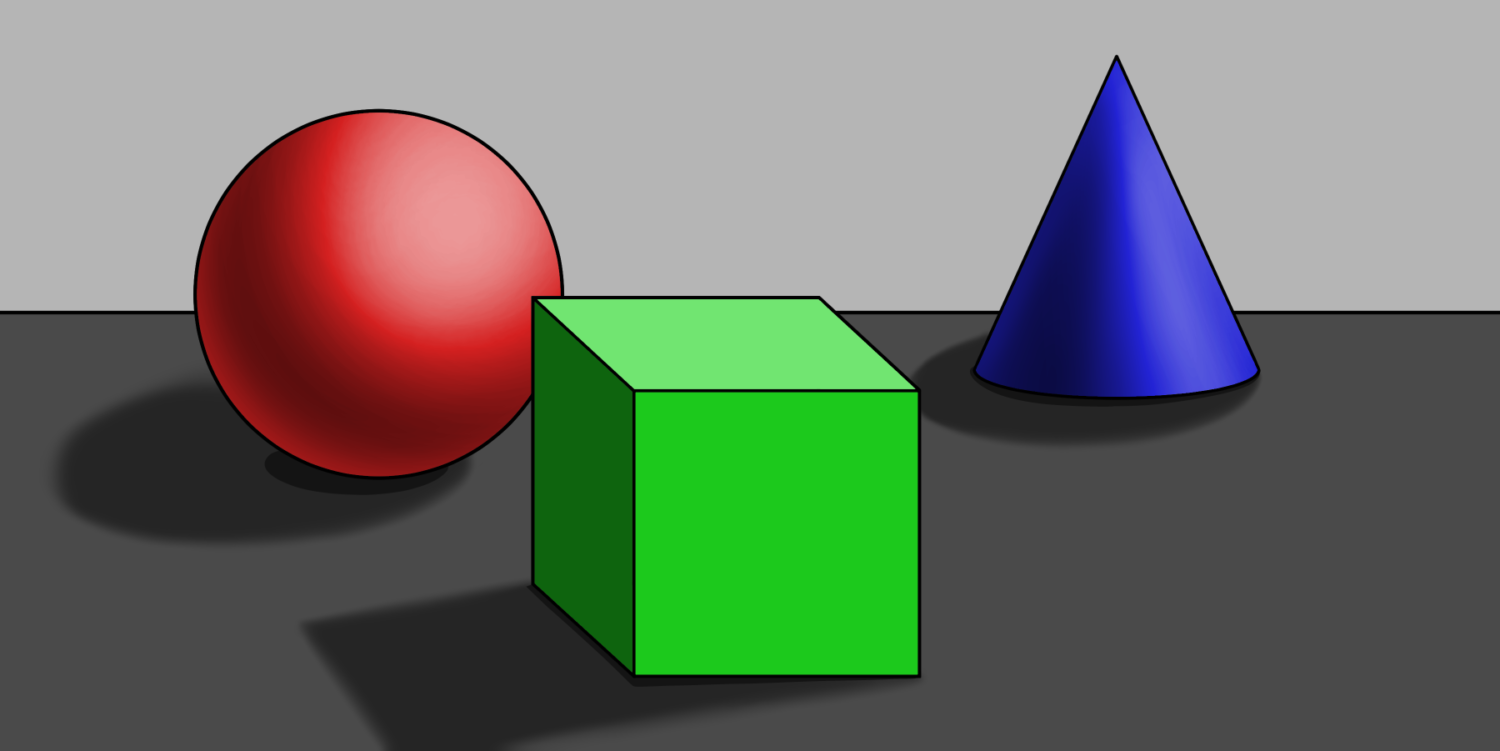
Unlike Darken, which strictly picks one color channel over the other, Multiply combines the color values of the two layers. This creates deeper, darker secondary colors on flat artwork.
- How to see it: Place a flat color layer over your base layer and change its mode to Multiply.
- The result: Clip Studio multiplies the colors together. The red shape becomes a rich deep burgundy, the green becomes an earthy olive, and the blue turns into a deep navy. It gives you realistic, harmonious color variations instantly. Lower the opacity if the effect is too strong.
- Use the sliders below to see how Multiply creates organic, blended color shifts across the red, green, and blue shapes.
 Normal
  Purple Multiply
 The Math
The color values of the Multiply layer are multiplied with the corresponding values of the base layer pixel by pixel. Because the values are scaled to a range between 0 and 1 before multiplying, the result can only get darker (or stay the same).
Mathier Math
RGB values are normally stored as numbers from 0 to 255, but Multiply first converts those values to a range from 0 to 1. It then multiplies the corresponding values from the two layers:
Result = Top Layer × Base Layer
For example, if a channel has a value of 200 on the top layer and 150 on the base layer:
200 ÷ 255 = 0.78
150 ÷ 255 = 0.59
Then:
0.78 × 0.59 = 0.46
Converting that back to the 0–255 range gives approximately 117.
Because multiplying two numbers between 0 and 1 can never produce a larger number than either input, the result can only get darker (or stay the same).
And that’s why white disappears: 1 × anything = that same value.
And black wins: 0 × anything = 0.